
Set up the Nexeno app on your Nextcloud
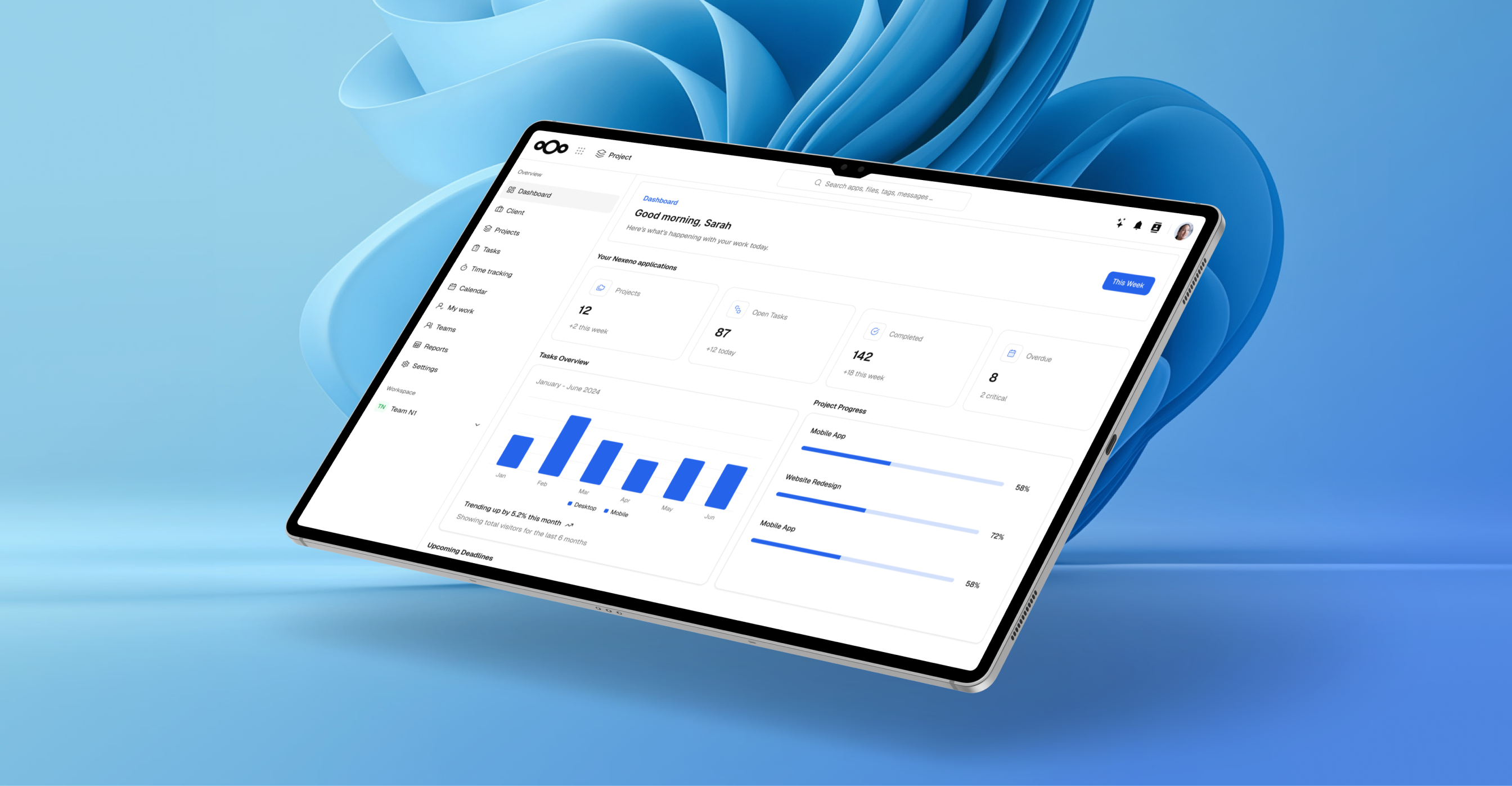
Nexeno is currently a free app that gives your Nextcloud instance a dedicated light/dark theme and a dashboard previewing the productivity modules we're building next. This guide walks a Nextcloud administrator through installing it on a self-hosted instance.
Installation guide
What you need before you start
Nexeno (app idnexeno_theme) is a standard PHP + Vue Nextcloud app, not a separate Docker container, so it runs directly inside your existing Nextcloud instance.- A working Nextcloud instance you administer (self-hosted, with shell/SSH access to the server)
- Admin access to run occ commands
- No API keys, license keys, or environment variables are required. Nexeno has none today.
Nexeno is not yet published on the official Nextcloud App Store. Until it is, install it manually using the steps below.Download the app
Download the latest packaged release using the button above, or directly from https://nexeno.io/downloads/nexeno_theme.zip. This package already contains the built app. You do not need Node.js or any build tools to install it.Unzip it on your Nextcloud server (or unzip locally and upload it, if your Nextcloud runs on a remote server):unzip nexeno_theme.zip -d .Copy it into your Nextcloud apps directory
Nextcloud looks for third-party apps in itsNative / direct server install:custom_apps/directory. Where this is depends on your setup: for a typical native install it's inside your Nextcloud data path; for a Docker-based Nextcloud, it's a mounted volume inside the container.Docker-based Nextcloud:cp -r nexeno_theme /var/www/nextcloud/custom_apps/ chown -R www-data:www-data /var/www/nextcloud/custom_apps/nexeno_themedocker cp nexeno_theme <your-nextcloud-container>:/var/www/html/custom_apps/nexeno_theme docker exec -u root <your-nextcloud-container> chown -R www-data:www-data /var/www/html/custom_apps/nexeno_themeReplace<your-nextcloud-container>with your actual container name (check withdocker ps).Enable the app
Run this as your Nextcloud web-server user (commonlyNative install:www-data):Docker-based Nextcloud:sudo -u www-data php /var/www/nextcloud/occ app:enable nexeno_themedocker exec -u www-data <your-nextcloud-container> php occ app:enable nexeno_themeA successful run prints something likenexeno_theme enabled.Verify it and turn on the theme
Log in to Nextcloud and hard-refresh your browser (to clear any cached assets). You should see a new Nexeno entry in your app navigation with a dashboard showing your system info and the Nexeno theme toggle.Method 1: from the Nexeno dashboard:
Open the Nexeno dashboard and switch on the Enable Nexeno theme toggle under the "Nexeno theme" card. By default it applies the Nexeno light theme.Method 2: from Settings:
Go to Settings → Appearance and accessibility. First turn on Enable Nexeno Theme, then choose Nexeno Light or Nexeno Dark.If the app doesn't appear, check your browser console for failed asset requests (404s), and check server logs (docker logs <your-nextcloud-container>for Docker setups) for PHP errors.What's next
The Nexeno dashboard also previews the modules we're building next: project management, CRM, invoicing, and more, each shown as "coming soon" today. As each module ships as its own app, this guide will be updated with the steps to add it.